01EN V4V
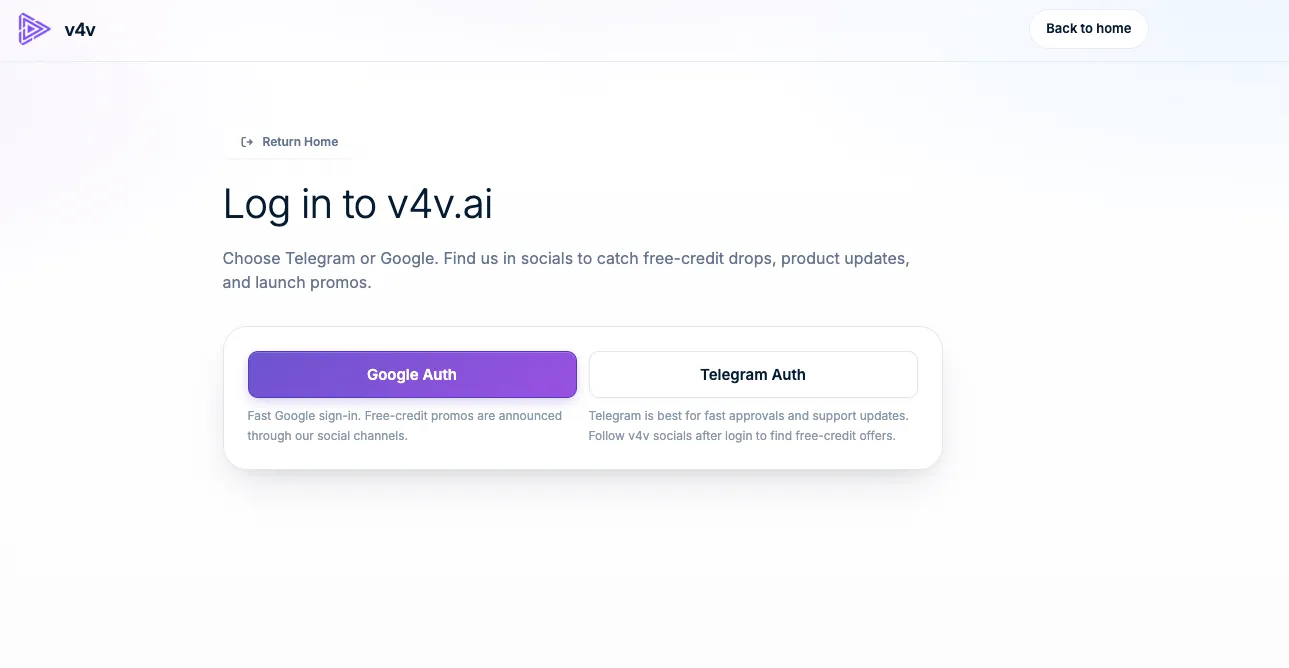
Inicia sesión en tu cuenta de V4V
Use Google or Telegram. Your assistant will use this same account, balance and media library.
Sign in to V4VVer ejemplo
 v4vInicio de .aiConecta tu asistente
Tu conversación. Tu estudio creativo.
Conecta V4V para crear vídeo, imágenes y audio con el asistente que ya usas.
https://v4v.ai/api/mcpInicia sesión con tu cuenta de V4V o usa una API key.
Los mismos créditos de V4V. La misma biblioteca de V4V.
Connect Claude on the web, desktop or mobile.
Click Add to Claude, review the prefilled name and server URL, then choose Continue.
Keep the detected Sign in now and Register automatically settings, choose Add, then Connect.
Sign in to V4V and accept the three required permissions. Connecting does not spend credits.
Follow the screenshot guide to set both Read-only tools and Write/delete tools to Always allow. Enable V4V in a conversation and check your balance.
Conecta tu cuenta actual de V4V. Revisa el asistente y aprueba el acceso una vez; no hay ninguna clave que crear, copiar ni guardar.
Créala una vez en V4V. Úsala en un cliente que admita encabezados de solicitud personalizados.
Aquí tienes la configuración completa, con Claude como ejemplo.
Use Google or Telegram. Your assistant will use this same account, balance and media library.
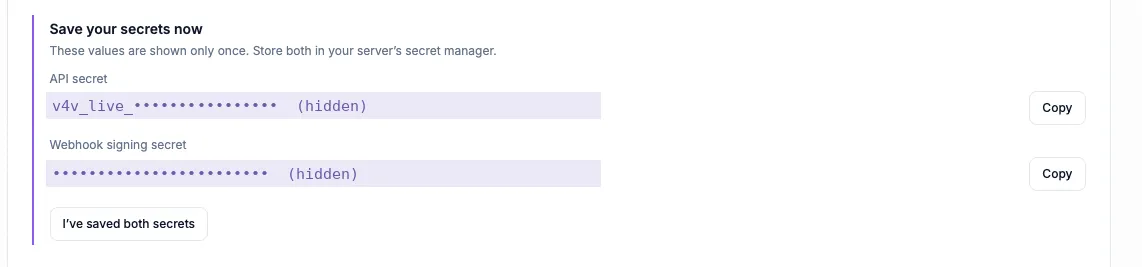
Sign in to V4VOpen your profile, find API Keys, give the key a name such as Claude, then choose Create API key.
Open your API keys
Copy the API secret that starts with v4v_live_. Keep it and the webhook signing secret somewhere safe; they are shown only once. Your assistant needs the API secret.
Mantén la clave API secreta en privado. Pégala solo en la configuración de autenticación de tu cliente.
Open the custom connector form with the button below. V4V and the server URL are filled in for you. Other clients have their own MCP settings.
Add to Claude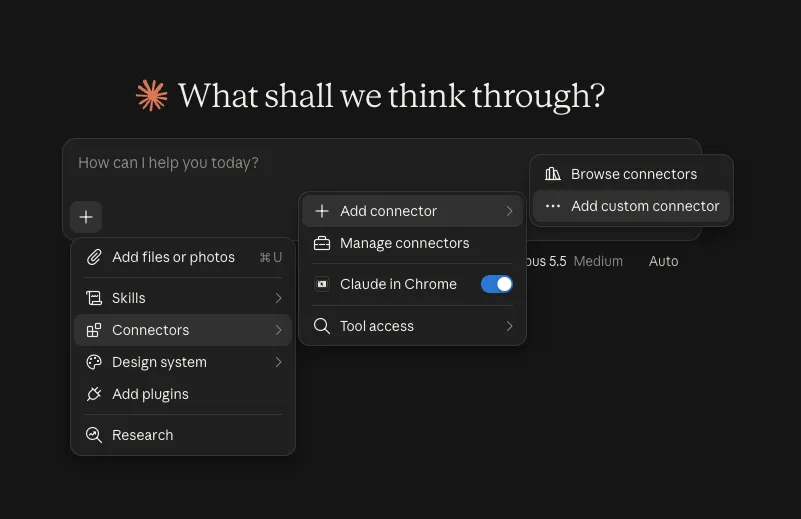
Name the connector V4V and enter https://v4v.ai/api/mcp. Choose Streamable HTTP when asked for the transport.
https://v4v.ai/api/mcp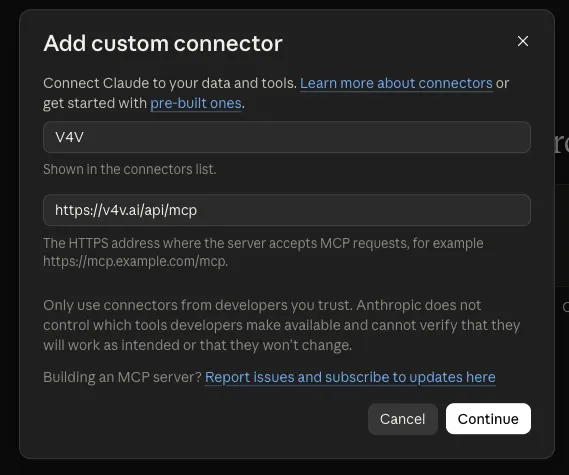
Under Request headers, choose x-api-key and paste the API secret. Header authentication depends on your Claude account or organization. Use OAuth if this option is unavailable.
x-api-key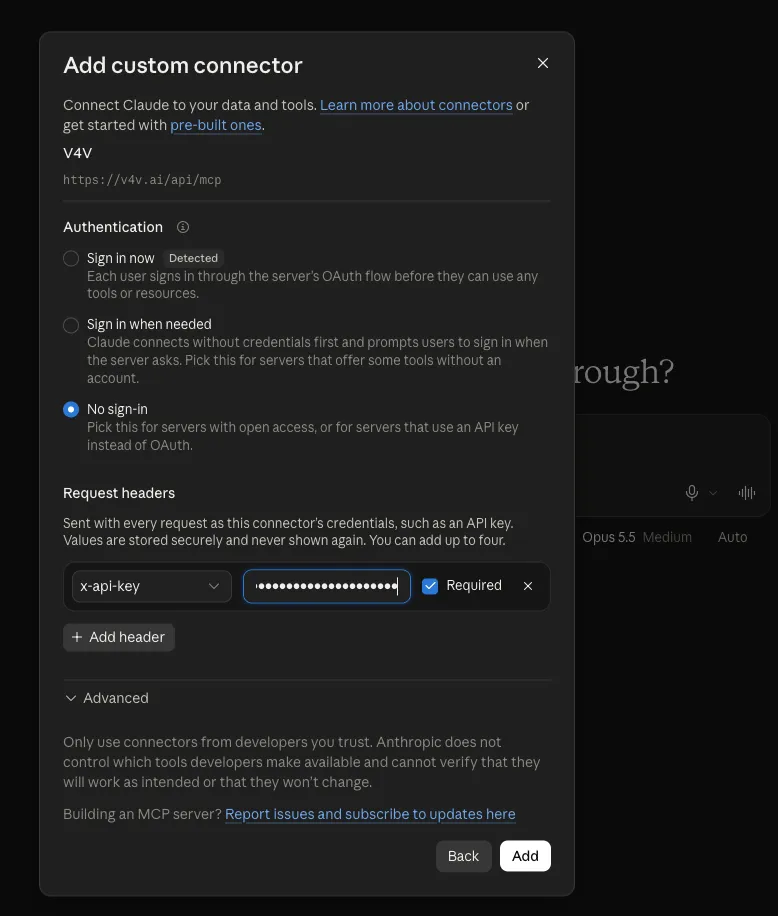
Choose Add and enable the tools you want Claude to use. Ask “Check my V4V balance.” Add credits in your V4V profile when you are ready to generate.
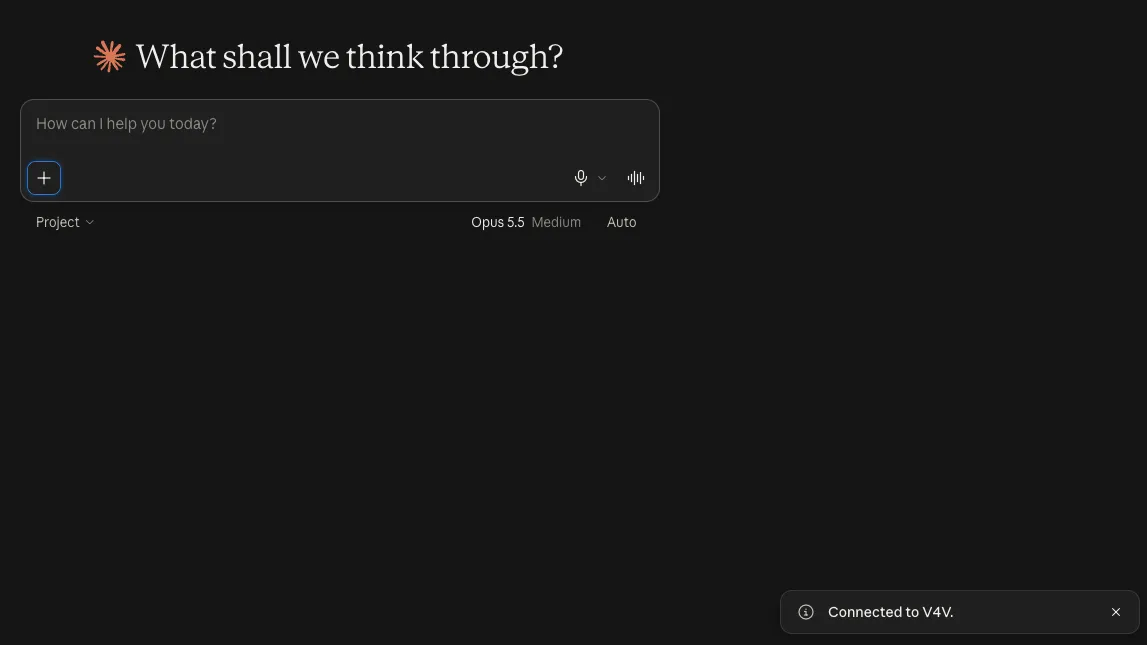
Las capturas de pantalla son ejemplos. Las etiquetas y las opciones de autenticación disponibles pueden variar según la versión del cliente o la cuenta.
Empieza con una comprobación de saldo y luego trae tu próximo briefing creativo.
Check my V4V balance and list the video models that accept a product image as reference.
Ver la guíaPlan a 10-second vertical 9:16 ad from this product URL. Show me the concept and estimated credits before generating.
Ver la guíaCreate two UGC-style concepts for this product: a natural talking-to-camera review and a product demonstration. Show costs and wait for my approval.
Ver la guíaPrepare one Studio video for each of these product URLs. Show the total credit estimate and ask for my batch budget before starting.
Ver la guíaCombine my last three V4V clips into a vertical video. Add a title for the first two seconds and show me a preview before export.
Ver la guíaWrite a 15-second voiceover for this product ad in English and Spanish. Show available voices and the credit estimate before generating.
Ver la guíaHerramientas, recursos multimedia de referencia, estimaciones de créditos, flujos de trabajo por lotes y edición. La referencia completa, cuando la necesites.
Abrir la documentación de MCP ¿Buscas la API REST?V4V MCP connects your AI assistant to your V4V account. It can discover models, use reference media, generate video, images and audio, edit videos and retrieve results through the Model Context Protocol.
Connecting, checking your balance, browsing models and checking task status do not spend generation credits. Generations use your existing V4V balance. Ask for an estimate and approve the brief before starting.
Use V4V sign-in (OAuth) when it is offered for your assistant. API keys are an alternative for clients that accept custom request headers. ChatGPT custom MCP connections use OAuth here, not a V4V API key.
Use the guides for ChatGPT, Claude, Claude Code, Cursor, VS Code, Codex CLI, Gemini CLI, Windsurf, Cline and OpenCode. Other clients can connect if they support remote Streamable HTTP with a custom authentication header.
Your assistant can return result links and task status. Generations also appear in the same V4V account and library used by the website, so you can continue working with them in V4V.
Yes. Open your V4V profile and disconnect it under Assistant connections, or revoke its API key. This stops new access; generations already submitted continue running.
Elige tu asistente. Conecta tu cuenta. Trae una idea.