01IN V4V
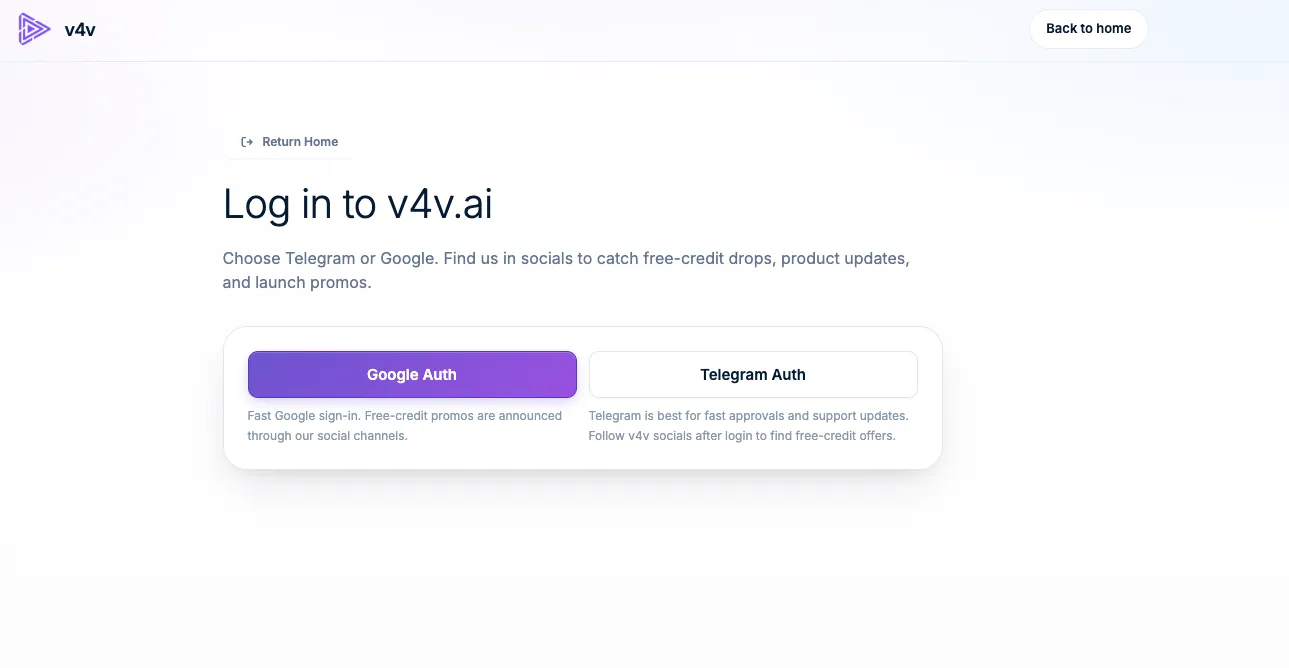
Sign in to your V4V account
Use Google or Telegram. Your assistant will use this same account, balance and media library.
Sign in to V4VView example
 v4v.ai homeConnect your assistant
Your conversation. Your creative studio.
Connect V4V to create video, images and audio with the assistant you already use.
https://v4v.ai/api/mcpSign in with your V4V account, or use an API key.
Same V4V credits. Same V4V library.
Use V4V tools with GitHub Copilot in VS Code.
Click Install in VS Code and let your browser open the desktop editor.
Review and trust the V4V server when VS Code asks.
Start the V4V server in MCP settings, then sign in and accept the V4V permissions.
Ask your assistant: “Check my V4V balance.”
{
  "servers": {
    "v4v": {
      "type": "http",
      "url": "https://v4v.ai/api/mcp"
    }
  }
}Requires the desktop editor. If the link is blocked, copy the configuration into .vscode/mcp.json.
Connect your existing V4V account. Review the assistant and approve access once—there is no key to create, copy or store.
Create it once in V4V. Use it in a client that supports custom request headers.
Here is the complete setup, with Claude as an example.
Use Google or Telegram. Your assistant will use this same account, balance and media library.
Sign in to V4VOpen your profile, find API Keys, give the key a name such as Claude, then choose Create API key.
Open your API keys
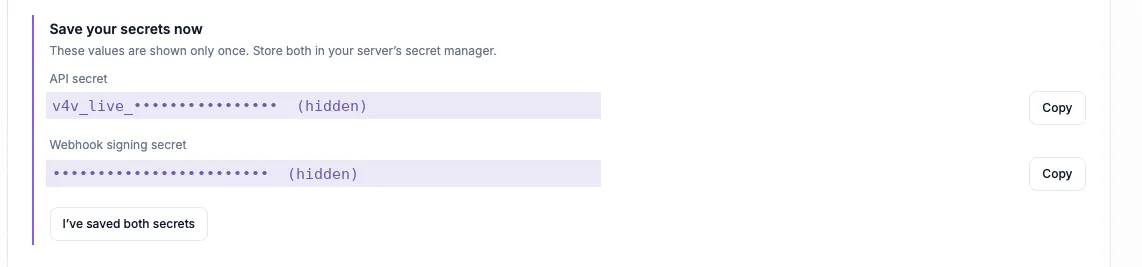
Copy the API secret that starts with v4v_live_. Keep it and the webhook signing secret somewhere safe; they are shown only once. Your assistant needs the API secret.
Keep the API secret private. Paste it only into your client’s authentication settings.
Open the custom connector form with the button below. V4V and the server URL are filled in for you. Other clients have their own MCP settings.
Add to Claude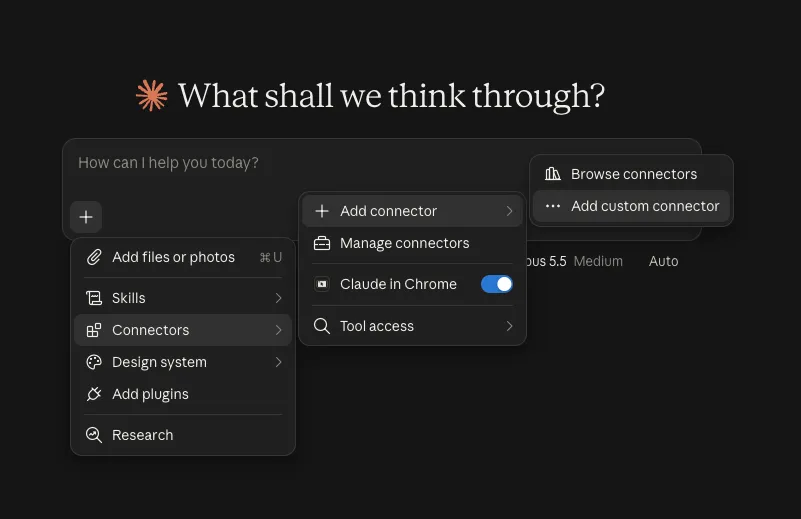
Name the connector V4V and enter https://v4v.ai/api/mcp. Choose Streamable HTTP when asked for the transport.
https://v4v.ai/api/mcp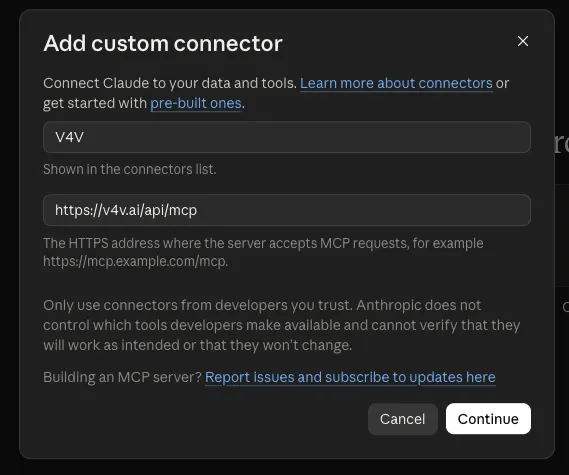
Under Request headers, choose x-api-key and paste the API secret. Header authentication depends on your Claude account or organization. Use OAuth if this option is unavailable.
x-api-key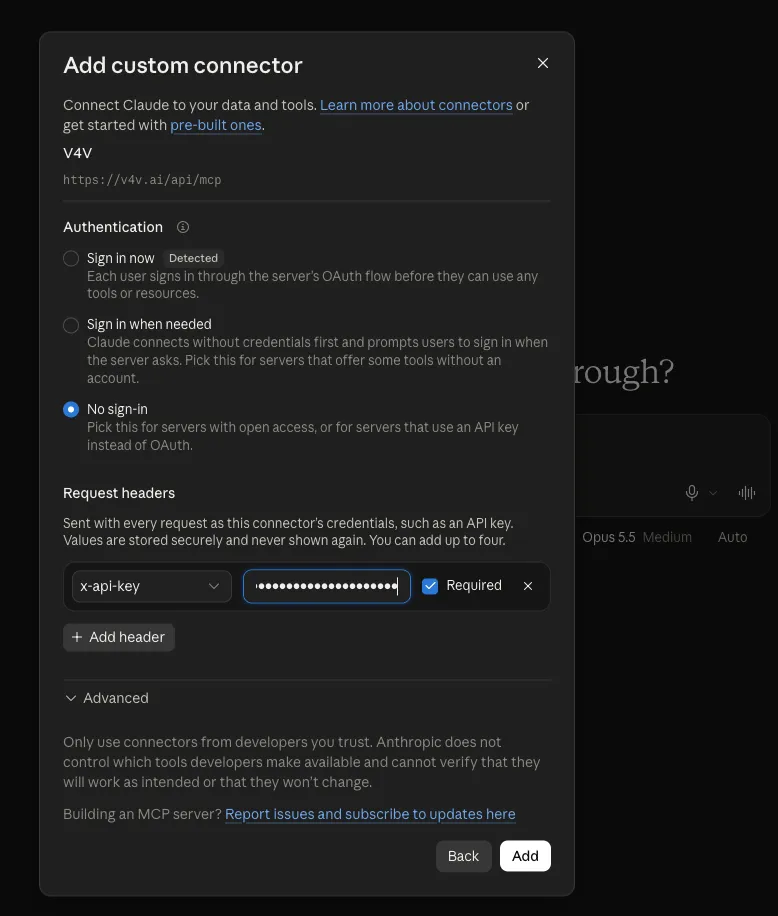
Choose Add and enable the tools you want Claude to use. Ask “Check my V4V balance.” Add credits in your V4V profile when you are ready to generate.
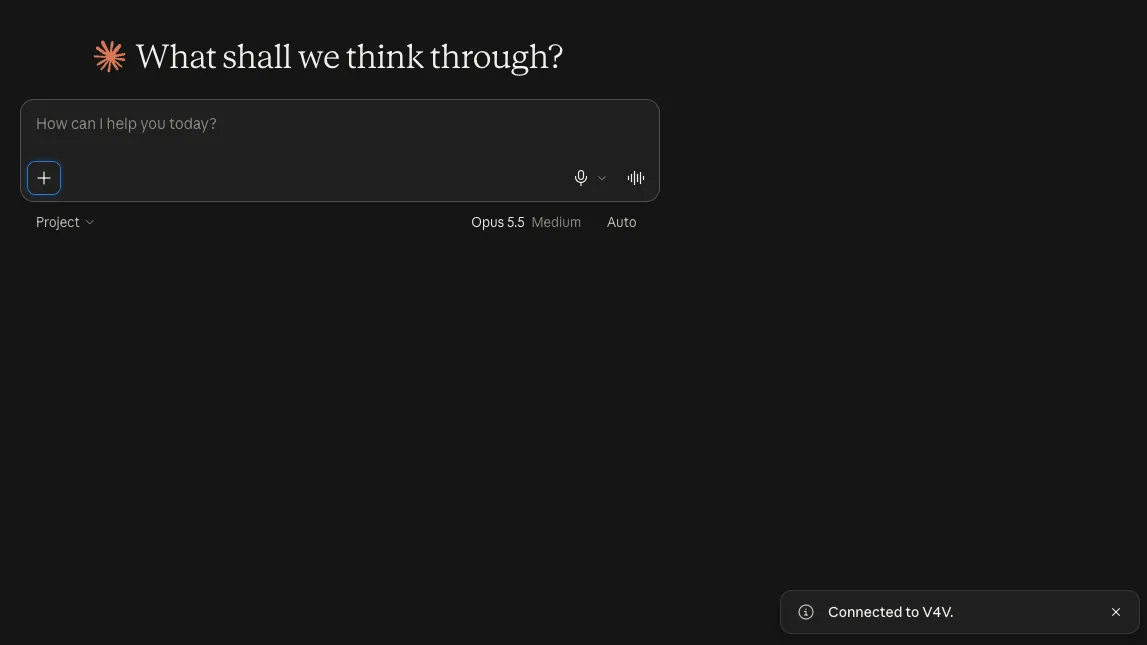
Screenshots are examples. Labels and available authentication options may vary by client version or account.
Start with a balance check, then bring your next creative brief.
Check my V4V balance and list the video models that accept a product image as reference.
See the guidePlan a 10-second vertical 9:16 ad from this product URL. Show me the concept and estimated credits before generating.
See the guideCreate two UGC-style concepts for this product: a natural talking-to-camera review and a product demonstration. Show costs and wait for my approval.
See the guidePrepare one Studio video for each of these product URLs. Show the total credit estimate and ask for my batch budget before starting.
See the guideCombine my last three V4V clips into a vertical video. Add a title for the first two seconds and show me a preview before export.
See the guideWrite a 15-second voiceover for this product ad in English and Spanish. Show available voices and the credit estimate before generating.
See the guideTools, reference media, credit estimates, batch workflows and editing. The full reference, when you need it.
Open MCP documentation Looking for the REST API?V4V MCP connects your AI assistant to your V4V account. It can discover models, use reference media, generate video, images and audio, edit videos and retrieve results through the Model Context Protocol.
Connecting, checking your balance, browsing models and checking task status do not spend generation credits. Generations use your existing V4V balance. Ask for an estimate and approve the brief before starting.
Use V4V sign-in (OAuth) when it is offered for your assistant. API keys are an alternative for clients that accept custom request headers. ChatGPT custom MCP connections use OAuth here, not a V4V API key.
Use the guides for ChatGPT, Claude, Claude Code, Cursor, VS Code, Codex CLI, Gemini CLI, Windsurf, Cline and OpenCode. Other clients can connect if they support remote Streamable HTTP with a custom authentication header.
Your assistant can return result links and task status. Generations also appear in the same V4V account and library used by the website, so you can continue working with them in V4V.
Yes. Open your V4V profile and disconnect it under Assistant connections, or revoke its API key. This stops new access; generations already submitted continue running.
Pick your assistant. Connect your account. Bring an idea.